Learn dsCalc in 15 minutes
dsCalc is a cart calculator for shopkeepers, made for speed. Type a quantity and a rate, watch the total, then save, share or print. It works fully offline, and your carts stay on your phone.
Three buttons at the top right of every screen take you anywhere. The one for the section you are in is outlined.
| Button | Use it to |
|---|---|
| Saved carts (receipt icon) | Find, search, reopen, print or share your carts. Day close is here too. |
| Cart log (clock icon) | See every cart created, revised or deleted, with before and after values. |
| Settings (gear icon) | Shop header and footer, appearance, printer, backup, and removing ads. |
The home screen is the entry screen: rows of Qty × Rate, a running total, and the keypad. Use the Back arrow on any other screen to return to it.
Typing a cart
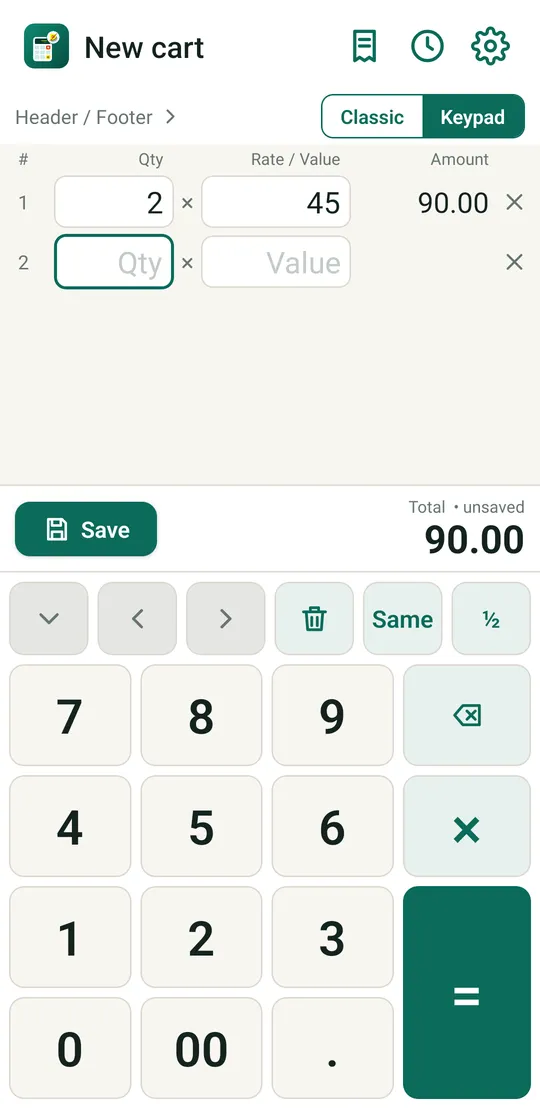
The whole idea: quantity, ×, rate, =, and repeat. You never tap a box.
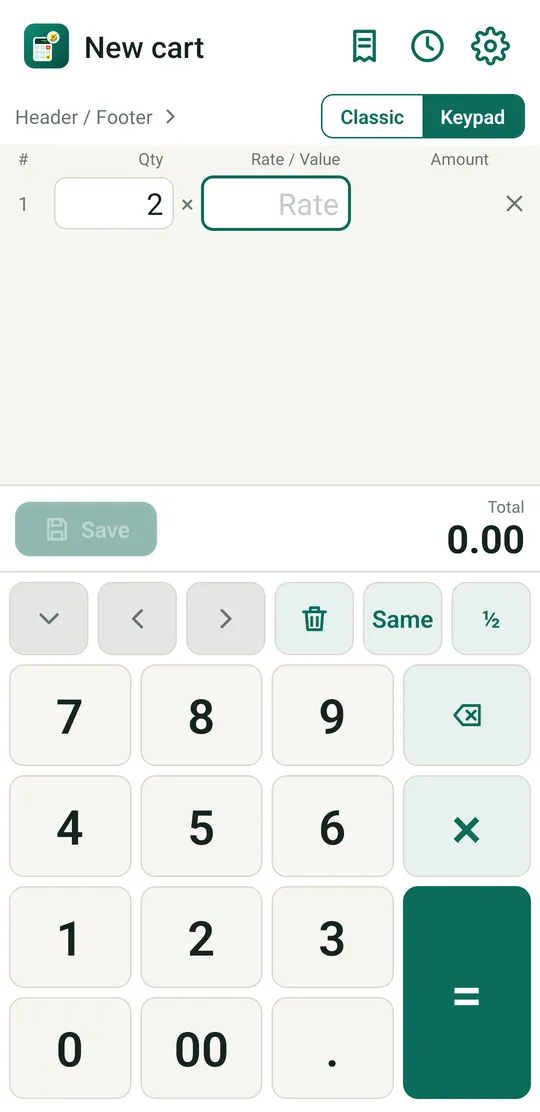
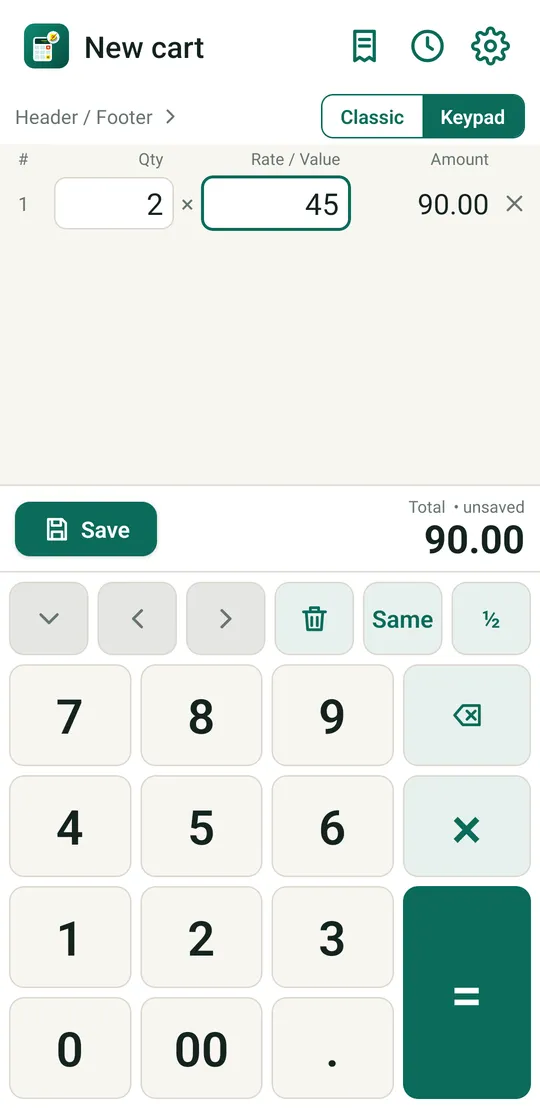
- Every row shows its Amount, and the big Total above the keypad updates as you type.
- A row with no quantity is a value row: leave Qty empty, press ×, and type just an amount (a packing charge, a loose total). The rate box then says Value.
- A row that is half filled turns red and stops you saving until you finish or remove it.
- Your cart is kept if you leave the app. Next time dsCalc offers to Restore or Discard it. The screen also stays on while you type.
The keypad
The entry screen has its own keypad, built for one-handed counter use: big keys, no waiting for a phone keyboard to appear, and keys for the things shopkeepers do all day (halves, repeated rates, quick row delete).
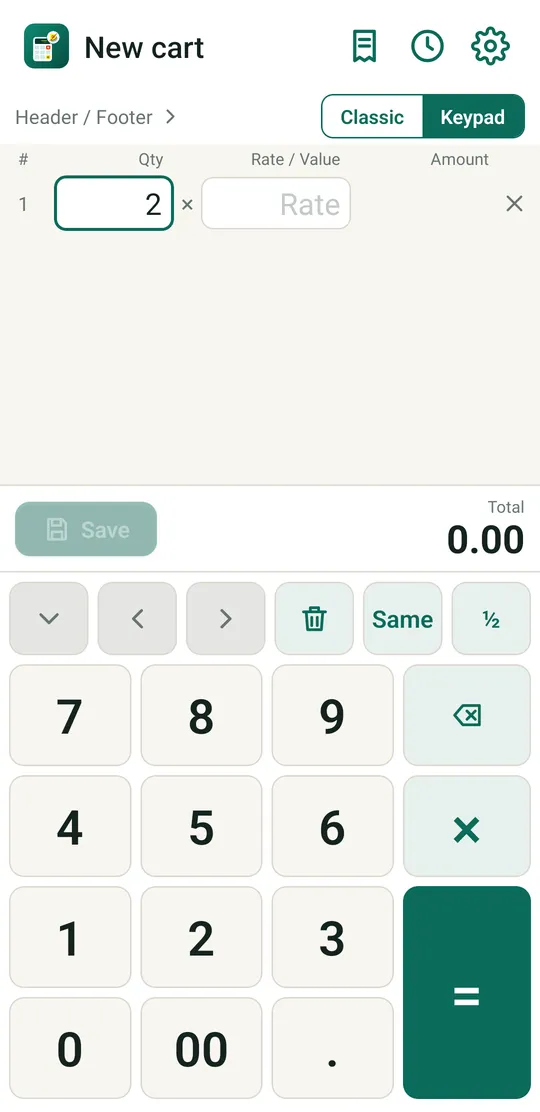
Every key, numbered
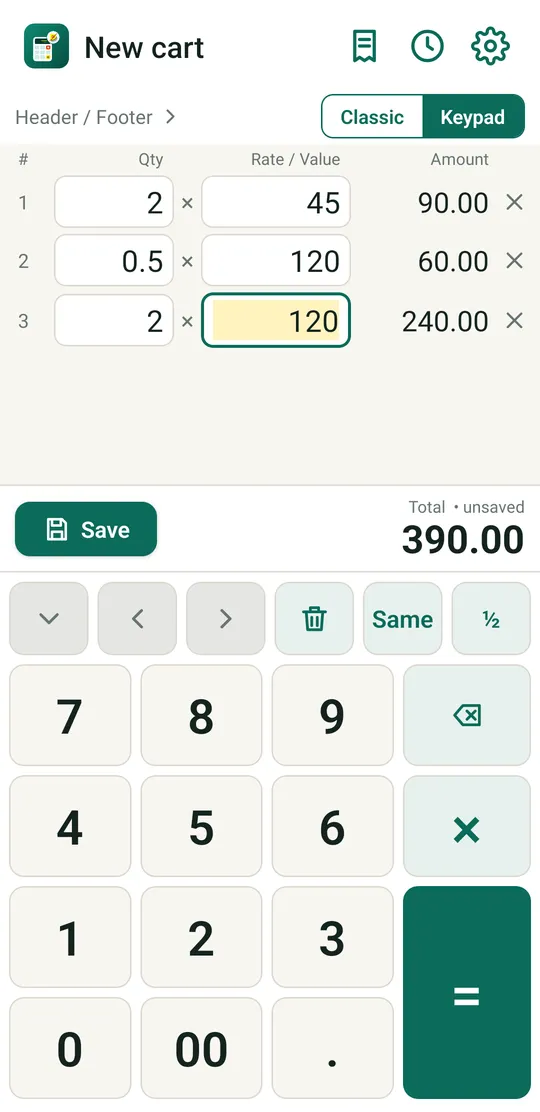
Match the numbers on the picture with the table. Teal keys change what you typed. Grey keys only move around and never change a value.
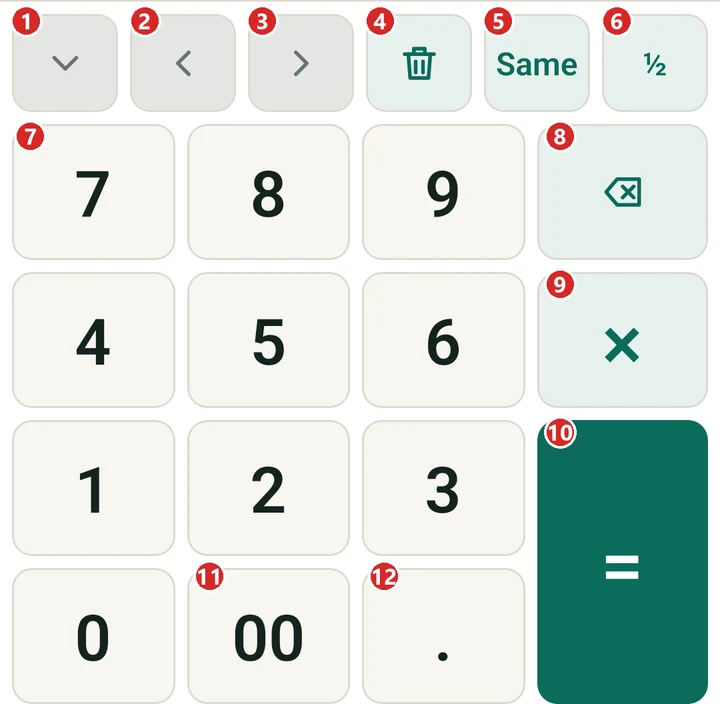
| Key | What it does | |
|---|---|---|
| 1 | ⌄ Hide | Hides the keypad so you can see the whole cart and reach Share, Print and New. See Hiding the keypad. |
| 2 | ‹ Previous | Back one field: from the rate to its quantity, from a quantity to the rate above. Use it to fix an earlier row. |
| 3 | › Next | Forward one field: from a quantity to its rate, from a rate to the next row. |
| 4 | 🗑 Delete row | Removes the row you are on. A bar at the bottom says Row deleted with UNDO for a few seconds. |
| 5 | Same | Copies the same field from the row above: on a Rate it copies the rate above, on a Qty the quantity above. |
| 6 | ½ Half | Types .5 in one press (3 then ½ gives 3.5; on its own it gives 0.5). Hold it for .25. |
| 7 | 0–9 | The digits, laid out like a calculator. |
| 8 | ⌫ Backspace | Removes the last digit. Hold it to clear the whole field. On an empty field it steps back to the previous field. |
| 9 | × Times | Finishes the quantity and moves to the rate. Leave the quantity empty first to make a value row. |
| 10 | = Equals | Finishes the rate: the row amount is worked out and you land on the next row's quantity. It is the biggest key, at your thumb. |
| 11 | 00 | Adds two zeros: 5 00 is 500, 15 00 is 1500. |
| 12 | . Point | Decimal point. On an empty field it starts 0. |
How Next and = work
× and = both mean "I am done with this box, go on". Where you land depends on the box you are in, so a hurried tap on the wrong one never gets you stuck.
| You are in | You press | Result |
|---|---|---|
| Qty with a number | × or = | Moves to the Rate of the same row. |
| Qty, empty | × or = | Makes a value row and moves to its Value. |
| Rate / Value with a number | × or = | Closes the row and moves to the next row's Qty. A fresh row is added if this was the last. |
| Rate / Value, empty or invalid | × or = | Stays put, so empty rows never pile up. |
Recipes
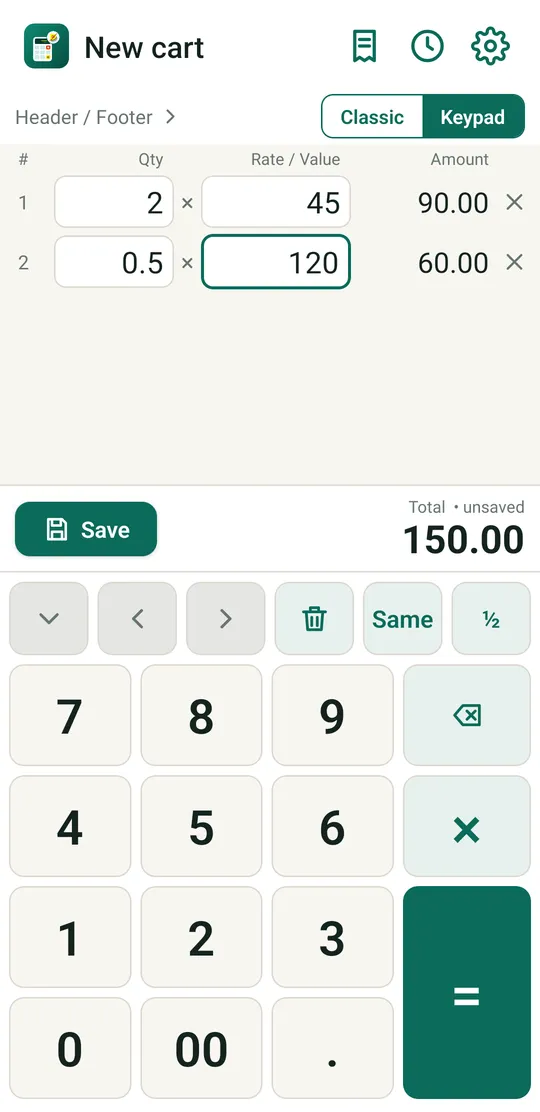
What to press for the things you do all day. The sample amounts are the ones in the pictures.
| You want | Press | You get |
|---|---|---|
| 2 packets at 45 | 2 × 4 5 = | 2 × 45 = 90.00, next row ready |
| Half a kilo at 120 | ½ × 1 2 0 = | 0.5 × 120 = 60.00 |
| Two and a half kilos | 2 ½ × ... | Quantity 2.5 |
| Two and a quarter kilos | 2 then hold ½ | Quantity 2.25 |
| Same rate as the row above | 2 × Same = | The rate above is copied; the number is highlighted |
| A rate of 1500 in three taps | 1 5 00 | 1500 |
| A packing charge of 30 | (empty Qty) × 3 0 = | A value row of 30.00 |
| You mistyped a digit | ⌫ | Removes the last digit |
| You mistyped the whole number | Hold ⌫ | Clears the box |
| Fix an earlier row | ‹ until you reach it, type the new number, = | The new number replaces the old one |
| Remove a row | 🗑 | Row removed, UNDO for a few seconds |
When you arrive in a box that already holds a number (with ‹, › or Same) it is highlighted. The next digit replaces it, so you do not have to delete first.
Hold keys and shortcuts
| Hold | Does |
|---|---|
| ½ | Types .25 instead of .5 (a quarter). |
| ⌫ | Clears the whole box in one go. |
The first time you use the keypad a small tip reminds you of these two. Tap GOT IT to dismiss it. Other keys act the moment your finger touches them, so quick typing never drops a key.
Hiding the keypad
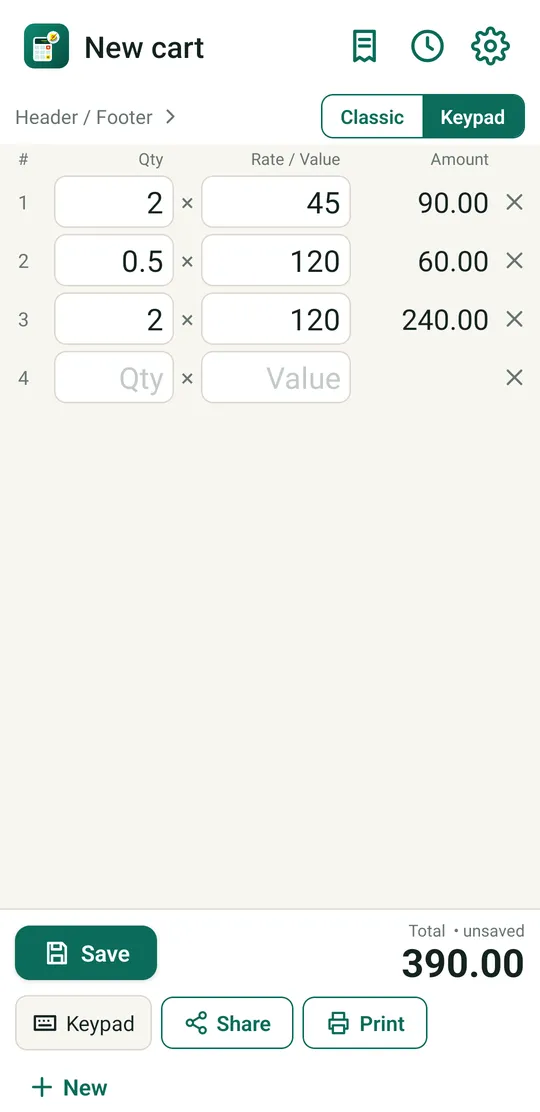
The keypad fills the lower half of the screen, so a long cart can scroll out of sight. Tap the ⌄ key (number 1) to hide it.
- The Share, Print and New buttons appear where the keypad was.
- Tap Keypad to bring it back whenever you want to keep typing.
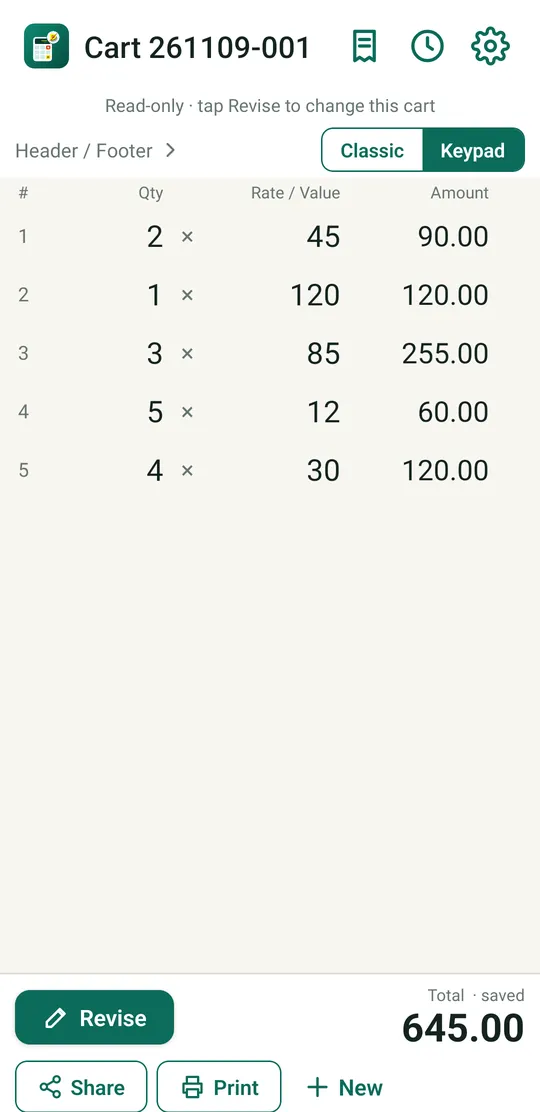
- Opening a saved cart shows it read-only without the keypad until you tap Revise.
Keypad or system keyboard
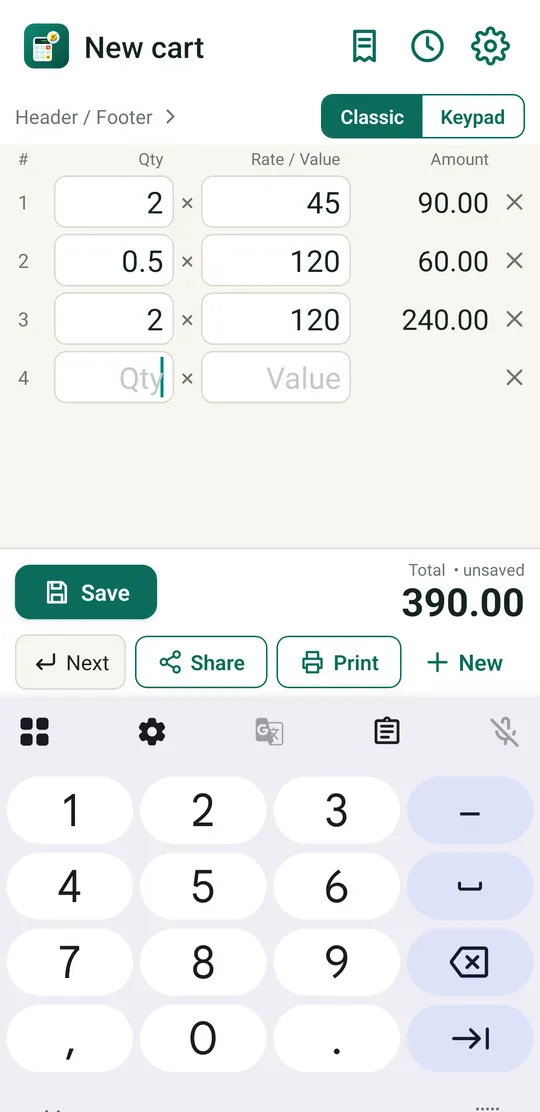
Above the rows there is a switch: Classic | Keypad. Keypad is the default.
| Keypad | Classic | |
|---|---|---|
| Keys | dsCalc's own: ×, =, ½, Same, delete row | Your phone's keyboard |
| Moving on | × and = | The keyboard's Next key, or the Next button on screen |
| Best for | Fast one-handed counter work | Anyone who prefers their usual keyboard |
Your choice is remembered, and you can switch at any time, even in the middle of a cart. Text such as the header and footer always uses the phone keyboard.
Limits and fixes
| Question | Answer |
|---|---|
| How long can a number be? | Up to 9 characters. Quantities take up to 3 decimals, rates and values up to 2. |
| I typed 0 then 5 and got 5. | Correct: a leading zero is dropped, so 05 never appears. |
| Nothing happens when I press 00. | It does nothing on an empty box or a lone 0. |
| ½ does nothing. | The number already has a decimal point. Remove it first. |
| Same does nothing. | The box above is empty (or you are on the first row). |
| The keypad is gone. | You hid it. Tap Keypad below the rows. In a saved cart, tap Revise first. |
| Keys feel too buzzy. | Turn off Vibrate on keypad keys in Settings. |
Save and revise
Save
Tap Save next to the total. The cart gets its number and moves to the Saved carts list. The screen now shows it read-only with Revise, Share, Print and New.
Tap New for the next customer.
Revise
Saved carts are locked on purpose, so a total cannot change by accident. To change one:
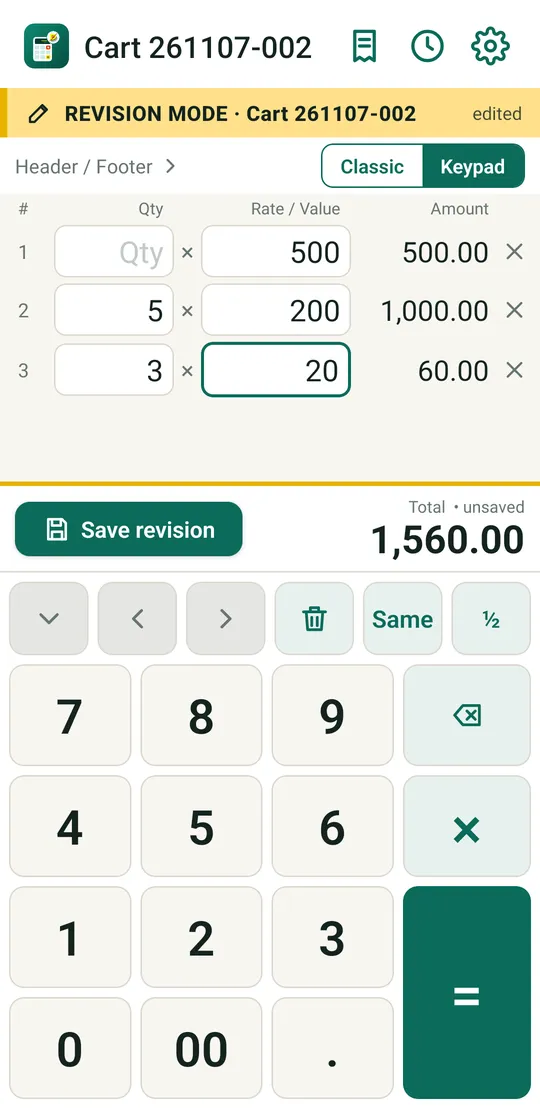
- Tap Revise and confirm.
- A yellow bar says REVISION MODE. Edit the rows with the keypad as usual.
- Tap Save revision.
The change is written to the Cart log with the values before and after. If you edit and then leave without saving, nothing changes.
Saved carts
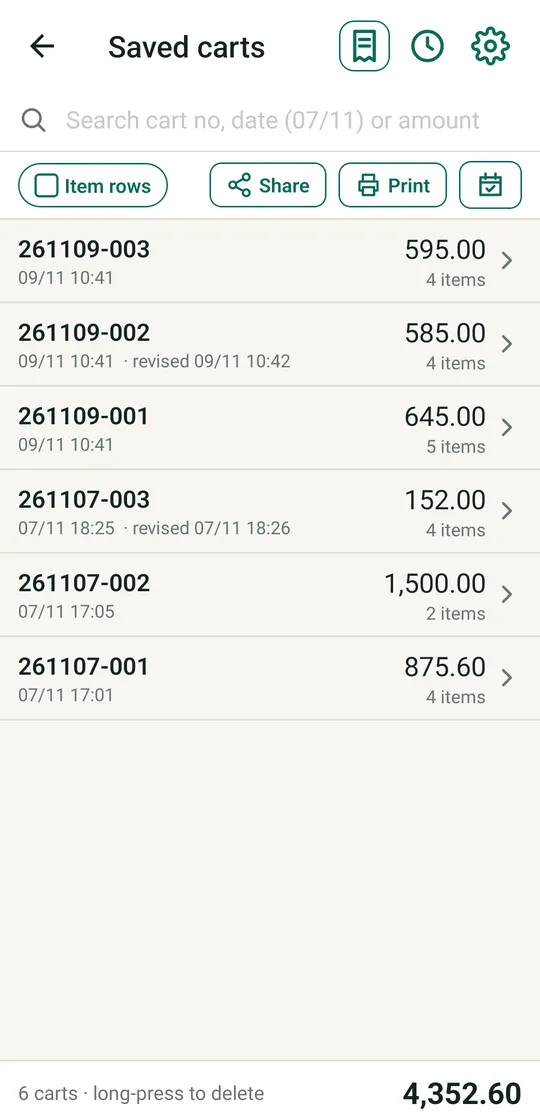
Open it with the receipt icon. Each row shows the cart number, when it was made (and when it was last revised), its total and its number of items. The footer adds up everything listed.
- Tap a cart to open it. Long-press to delete it (the log keeps its original values).
- Search by cart number, a date such as 07/11, a time, or an amount. Several words narrow it further.
- Share and Print act on what the list is showing, so search first to report on just some carts.
- Item rows adds each cart's lines under its total. Leave it off for a short list.
- The calendar button is Day close.
Cart log
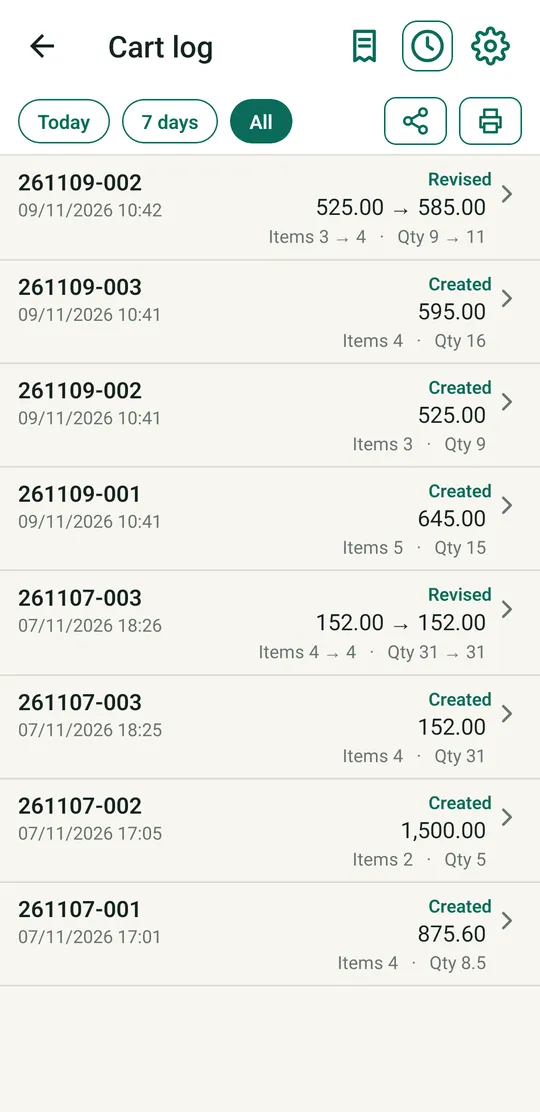
The log is the shop's memory. Every cart created, revised, deleted, and every day closed is listed, newest first, with the time, the amounts and the item and quantity counts. A revised entry reads 525.00 → 585.00.
- Tap an entry for a side-by-side view of before and after, with changed, added and removed rows tinted.
- Today | 7 days | All filters the list.
- Share and Print (the two icons) send what is listed, as text, PDF or on paper.
Share and print
Share
Tap Share on a cart (or on a list or the log) and choose:
- Text: a compact message, ideal for WhatsApp.
- PDF: a receipt-width page you can send or keep.
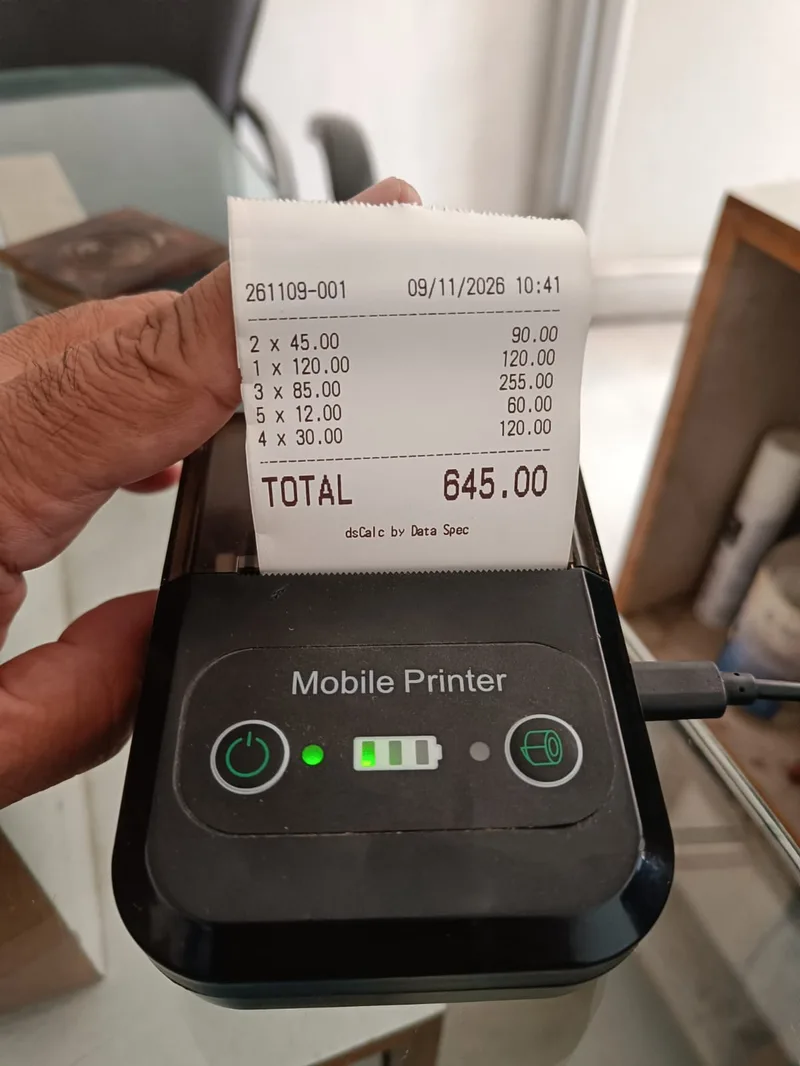
Print on a 58 mm or 80 mm Bluetooth thermal printer. Tap Print; a small animation shows the receipt feeding out while dsCalc connects.
You can print a single cart, the saved-carts list, the cart log and the day statement.
Printer off?
If the printer is switched off or out of range, dsCalc says it could not connect and offers Find printer. That opens the printer screen and starts searching straight away, so you can pick it and print again.
Set up the printer
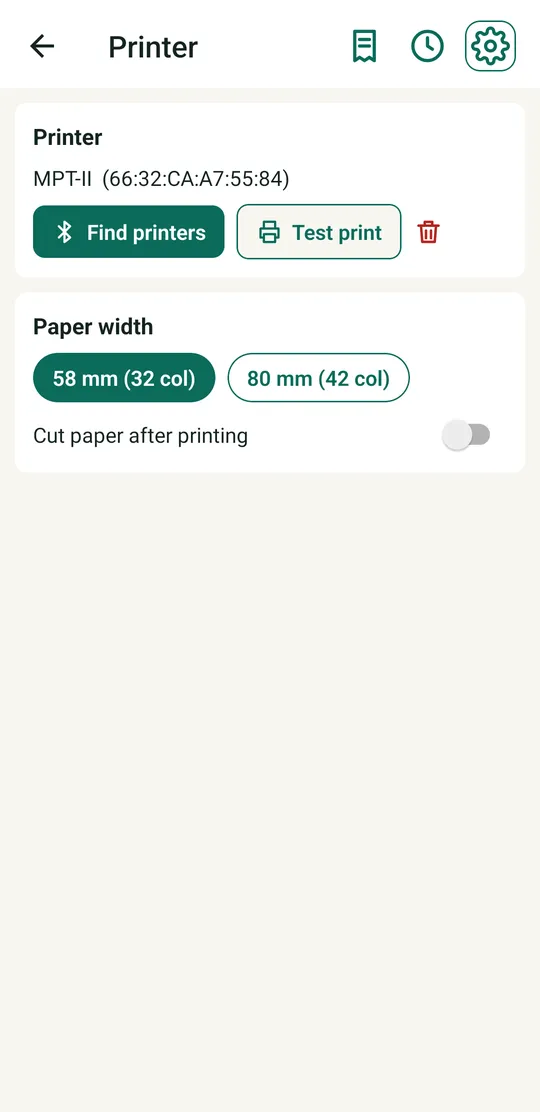
- Switch the printer on and pair it in your phone's Bluetooth settings.
- In dsCalc open Settings › Printer and tap Find printers. Tap yours.
- Choose the paper: 58 mm (32 columns) or 80 mm (42 columns).
- Tap Test print. You should see a short test slip.
The trash icon forgets the printer. Cut paper after printing is for printers with a cutter.
The printer is connected only while printing and released afterwards, so other phones can use the same printer.
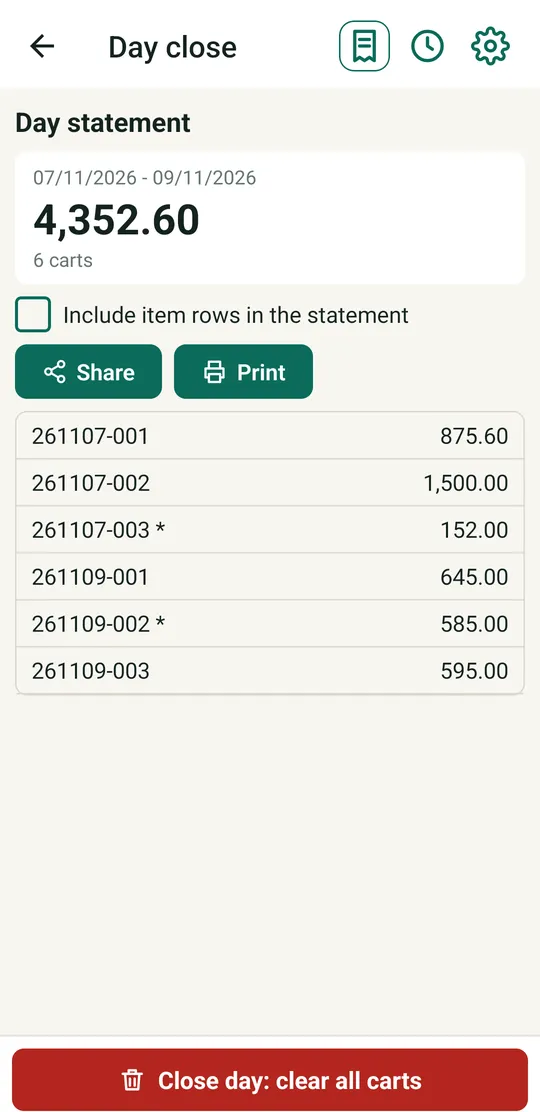
Day close
At the end of the day open Saved carts and tap the calendar button.
- Read the statement: the period, the grand total, and every cart with its amount (a * marks a cart revised after its first save).
- Tick Include item rows if you want the lines too.
- Share or Print the statement.
- Tap Close day: clear all carts and confirm.
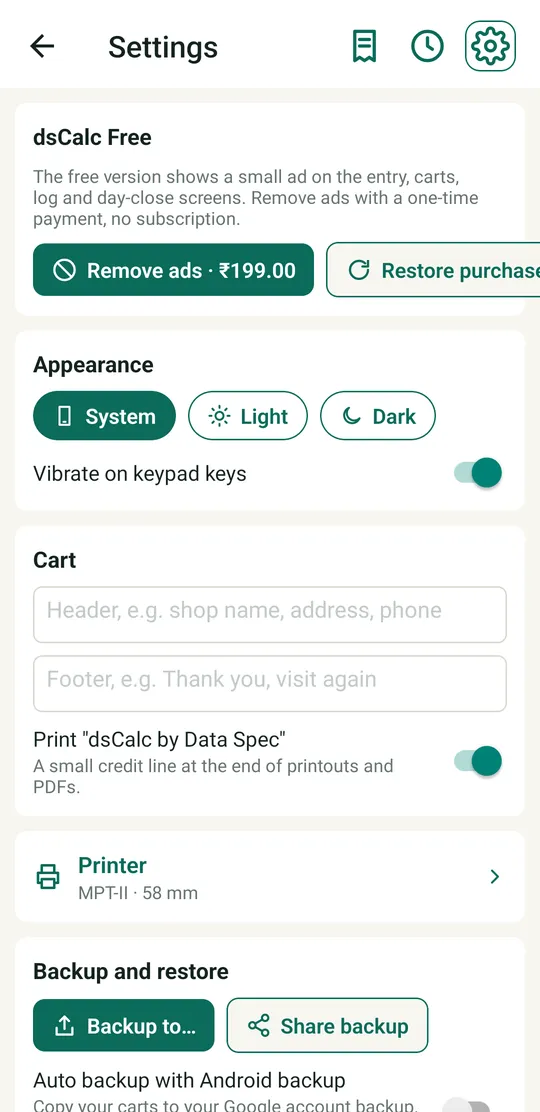
Settings
| Setting | What it does |
|---|---|
| Appearance | System, Light or Dark. Follows your phone by default. |
| Vibrate on keypad keys | A tiny tick on every key press. |
| Header and Footer | Your shop name, address and phone, and a thank-you line. They print on every cart. A single cart can add its own under Header / Footer on the entry screen. |
| Print "dsCalc by Data Spec" | A small credit line at the end of printouts and PDFs. Switch it off if you wish. |
| Printer | Choose, test and size your printer. See Share and print. |
| Backup and restore | See below. |
Backup and restore
Your carts live only on your phone, so back them up now and then, and always before changing phones.
- Backup to… saves a backup file wherever you choose (Drive, a folder, a memory card).
- Share backup sends the file straight to WhatsApp, email or anywhere else.
- Auto backup with Android backup copies your carts to your Google account backup so a new phone can restore them. It is off by default, and needs Backup to Google Drive turned on in the phone's own settings.
- Restore picks a backup file and shows how many carts and log entries it holds. It replaces everything now in dsCalc (carts, log and settings), so back up the current data first if you are unsure.
Free and paid
dsCalc is free and every feature works. The free version shows one small banner ad on the entry, saved carts, log and day-close screens (never in Settings). A one-time Rs.199 purchase, Remove ads in Settings, removes the ads for good. There is no subscription.
dsCalc has no accounts, no sign-in and no lock screen, and it does not send your carts to the developer. Read the privacy policy for the details.
Quick answers
| Question | Answer |
|---|---|
| I saved a cart with a wrong rate. | Saved carts › open it › Revise › fix it › Save revision. The log keeps the old value. |
| I deleted a cart by mistake. | The log still holds its original rows. Open the log entry to read them and type the cart again. |
| The printer did not print. | Check it is switched on and close, then tap Find printer in the message, pick it, and print again. |
| How do I print only some carts? | Saved carts › type in the search box › Print. It prints what is listed. |
| How do I send the day's sales to my accountant? | Day close › Share › PDF (tick Include item rows for detail). |
| The app closed in the middle of a cart. | Open dsCalc again and choose Restore on the prompt. |
| I want my usual keyboard. | Tap Classic above the rows. |
Ready to try it? Install dsCalc from Google Play, or read more about it on the home page.
dsCalc is a product of Data Spec, Bilaspur · dataspec.info